Constellations by video: step by step
An online constellation combines two things: the video call, in which you and your client see and hear each other, and the board on which the picture emerges. You hold the conversation in the program you use anyway. The Parafeld™ System Board is added in the browser.
What you need
- A video program such as Zoom, Microsoft Teams or Jitsi. The board has no video conferencing of its own.
- An up-to-date browser on a computer. A second screen is convenient but not necessary.
- On the client’s side, a browser on a computer, tablet or phone. She needs neither an account nor an installation.
What characterises an online constellation as a format is described on aufstellungen.de (in German) under Online constellation. This page is about the technology; the page Facilitating an online constellation describes the course of a whole session with a checklist.
Screen sharing or live session?
There are two ways of bringing the client to the board. They differ mainly in who moves the figures.
| Screen sharing | Live session | |
|---|---|---|
| Who moves | only you; the client says where a figure should go | the client herself, on her own device |
| What the client sees | your screen, just as you see it | the board in her own view, including the first-person view |
| Preparation | screen sharing in the video program | posting the invitation link in the chat |
| Where the board is | only on your computer; the picture is transmitted through the video program | on all devices, kept in sync with end-to-end encryption |
Screen sharing is enough if you arrange the picture according to the client’s instructions. The live session fits when the client is to place the figures herself – just as she would pick up the figures herself on a wooden board. She places a figure, turns it and checks from there whether the place is right.
How to start the live session
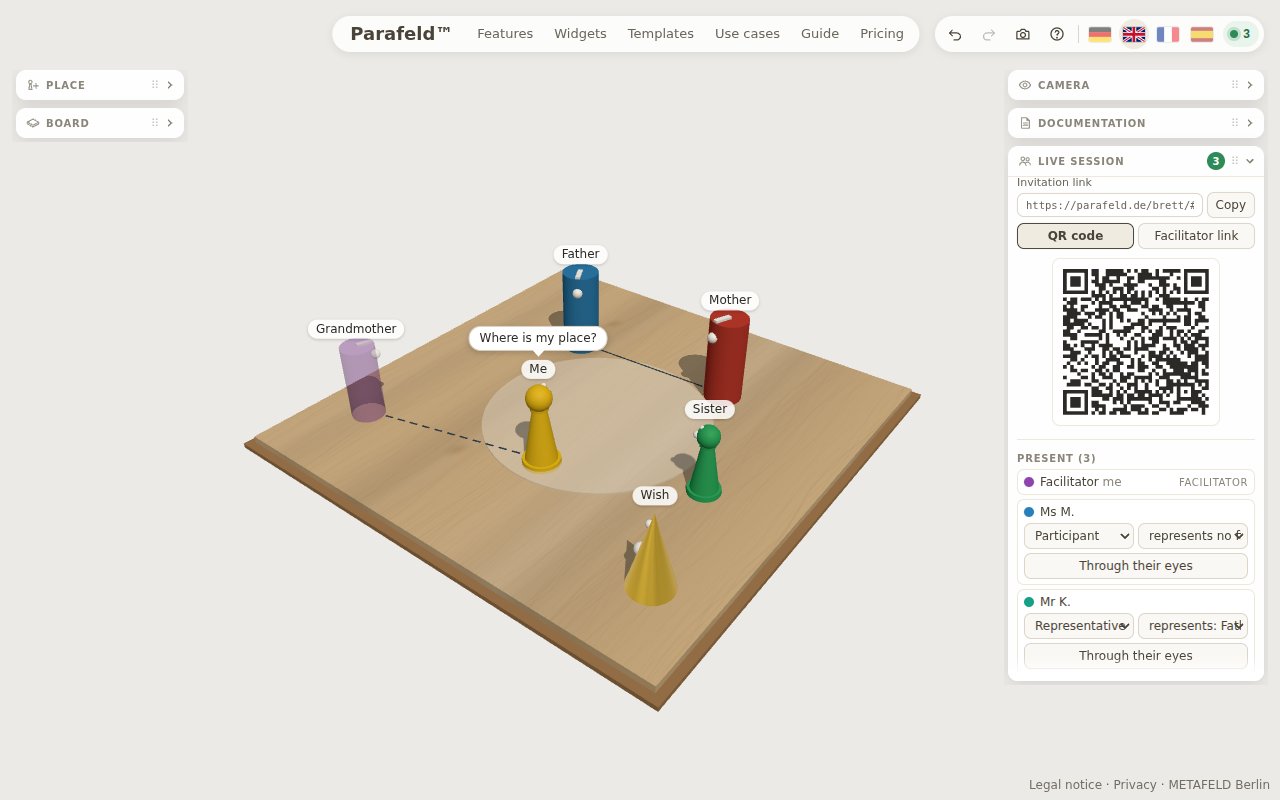
- Prepare Open the board before the appointment. Load a template if needed and enter the title and concern in the “Documentation” widget – both stay in your browser and are not passed on to the session.
- Start the video call Start the call as usual.
- Start the live session In the “Live session” widget, enter your name under “Your name”, set a PIN if you wish and click “Start live session”.
- Post the link in the chat “Copy” next to the invitation link puts it on the clipboard. Paste it into the chat of the video program. If the client is using her phone, she can scan the “QR code” instead.
- The client joins She opens the link, enters her name – and the PIN, if there is one – and clicks “Join”. She appears in your list of people present with her role.
- Share the video room If you wish, enter the link to the video room in the “Video room” field and click “Share”. The link appears in the session chat, for everyone as an “Open video room” button – useful if someone loses the connection or arrives at the board first.
Roles: who can do what
New guests join the session as “Participant”: they can place, move and label figures. Under “Role of new guests”, “Observer” can be set instead; guests then see the board but do not change it. In the list of people present, you change each person’s role individually. In group constellations, use “Assign figure” to give each participant a figure; in the “Representative” role, they move only this figure and can see the board from its perspective. An overview of the roles is under Live session.
During the constellation
- Show my view sends your view to everyone once – to point to a particular spot, for example. After that, each person looks around freely again.
- Through their eyes shows you what the client currently has in front of her.
- Concealed constellation hides the names from the others; they only see letters.
- Chat takes short notes without interrupting the conversation.
- Snapshots are captured in the “Documentation” widget as usual; they stay with you.
Closing the session
Capture the final picture as a snapshot. “Picture to take home …” in the “Documentation” widget creates a link with the solution picture, which you post in the chat or show as a QR code – so the client has her picture on her phone. Details are under Picture to take home.
Then “End for everyone” ends the session; the room is deleted immediately, and your board stays with you. If you only choose “Leave session”, the room remains; it is then deleted 30 days after it was last used.
Advice for the client
A computer or tablet is the most comfortable option for the client, because the video picture and the board fit side by side there. On a phone things get cramped; it then helps to hold the video call on a second device. If she has already used the board for herself, her own constellation is kept in the browser and comes back after the session. How operation with a finger works is described under Phone and tablet.
The live session and the picture to take home are part of the Practice plan; during the introductory phase they are free to use. The client never pays and does not need an account. More under Pricing.