Picture to take home: the solution picture on the client’s phone
At the end of a constellation there is a picture that is meant to stay in the memory. With the picture to take home of the Parafeld™ System Board, the client receives this picture on their own phone – as a link or QR code, in 3D and without an account.
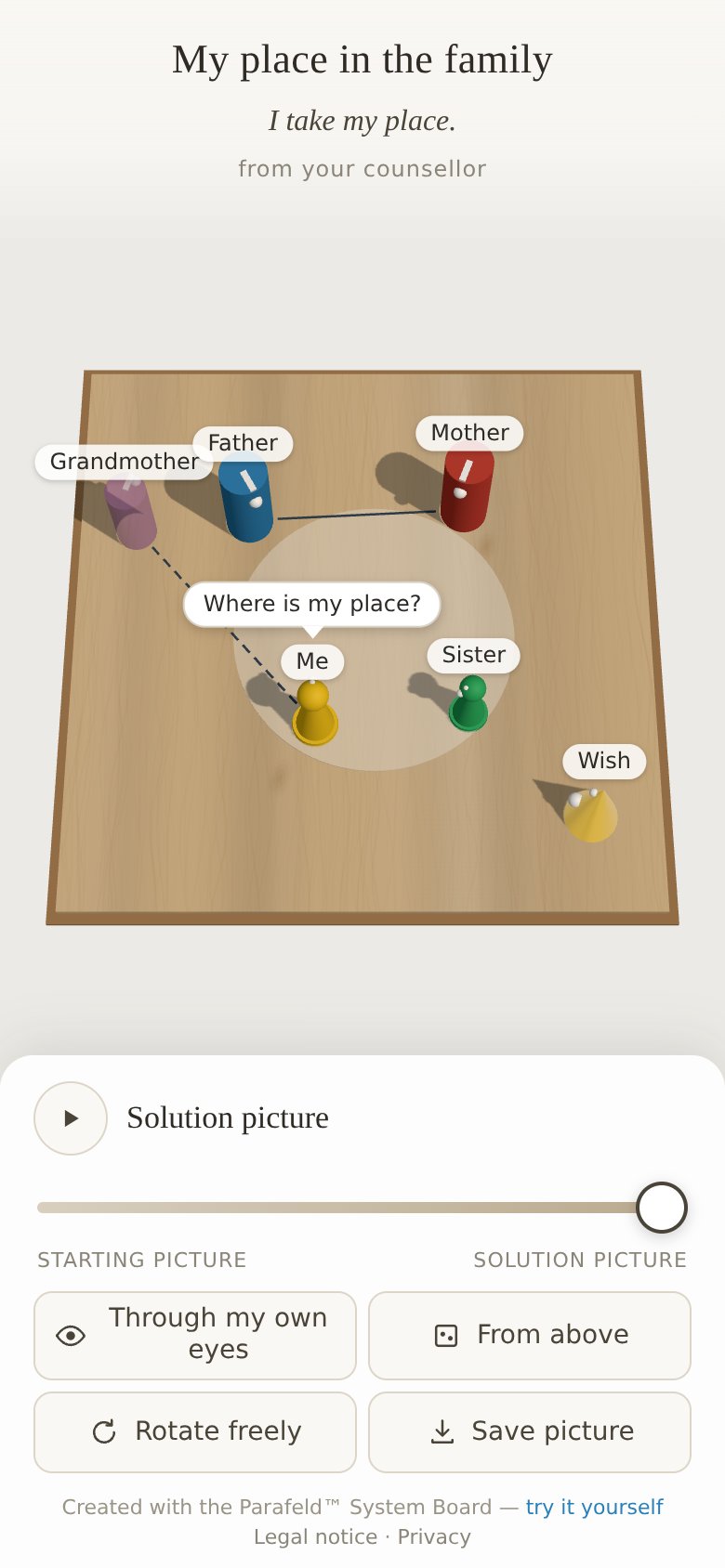
What the client sees on her phone
The link opens a separate, plain view in the browser. It shows the heading, a personal line if you wish, and the name of the facilitator. The board appears in 3D and can be rotated.
- From the starting picture to the solution picture: a slider leads through the selected pictures; the figures travel from their first to their last place. A button plays the path.
- Through my own eyes: the picture from the perspective of her own figure. Dragging looks around.
- From above and Rotate freely: the overview and the freely movable view.
- Save picture: stores the picture on the device.
No app is needed, and no account either. The view opens in an up-to-date browser, on a phone as well as on a computer.
How to create the link
- Capture pictures In the “Documentation” widget, capture the starting picture and the solution picture as snapshots, and pictures in between if you wish. How this works is described under Documentation.
- Open the dialog Under “Share”, “Picture to take home …” opens the dialog.
- Choose pictures Under “Pictures in the link”, tick the snapshots that should be included; “Current picture” adds the board as it stands right now. The first picture is the starting picture, the last one the solution picture. If nothing is selected, the link shows the current picture.
- Specify the client’s figure Under “The client’s own figure”, choose the figure that stands for her. Only then is the view “Through my own eyes” available.
- Add words “Heading”, “Personal line” – a resolving sentence or a greeting, for example – and, if you like, “Name of the facilitator”.
- Pass it on The link is ready, with a QR code next to it to scan with a phone. “Copy link” puts it on the clipboard, and “Share …” opens the share menu on devices that support it. “Open view” shows in advance what the client will see.
The more pictures the link contains, the longer it becomes. If it is too long for a QR code, it can still be copied and sent as a message – or you choose fewer pictures.
What the link contains – and what it does not
The data of the picture is contained entirely in the link; nothing is stored on the server. Notes, the concern and session notes are not included. What is included is what can be seen on the board – the figures with their labels – plus the selected pictures and the texts from the dialog.
It follows that anyone who has the link can open the picture. So give it only to the client herself, and choose labels that also fit outside the session – “Mother” rather than a full name, for example. More on the technology is under Security and privacy.
What the picture is meant for
Of the final picture on a wooden board, usually only a photo remains. The picture to take home goes further: between appointments the client can rotate her picture, look at it from her own figure and retrace the path from beginning to end. The next session can pick up from there. At the end of an online session, simply post the link in the chat of the video call – the steps are described under Constellations by video.
The picture to take home is part of the Practice plan; during the introductory phase it is free to use. The client can always open it without an account and free of charge. More under Pricing.